> ## Documentation Index
> Fetch the complete documentation index at: https://docs.refix.ai/llms.txt
> Use this file to discover all available pages before exploring further.
# Event Tracking
> Learn how Refix automatically tracks user interactions (clicks, etc.) on your Framer site without code (autotrack). See how events are contextually displayed based on your current Framer page.
Refix can automatically track user interactions on your published site without requiring any manual setup or code.
## How Autocapture Works
When you publish your Framer site with the Refix plugin installed, Refix automatically scans your pages for common interactive elements, such as:
* Links (a tags)
* Buttons
* Any other clickable elements like dropdowns, menus etc
## Contextual Event Display in Framer
When the Refix plugin panel is open while viewing a page canvas in the Framer editor, the "Events Identified" section updates contextually.
* **Page-Specific Events:** The panel displays events automatically detected and tracked specifically on the page currently active in the Framer canvas.
* **Dynamic Updates:** Navigating between different pages in the Framer project updates the event list in the Refix panel to show interactions relevant to the current page.
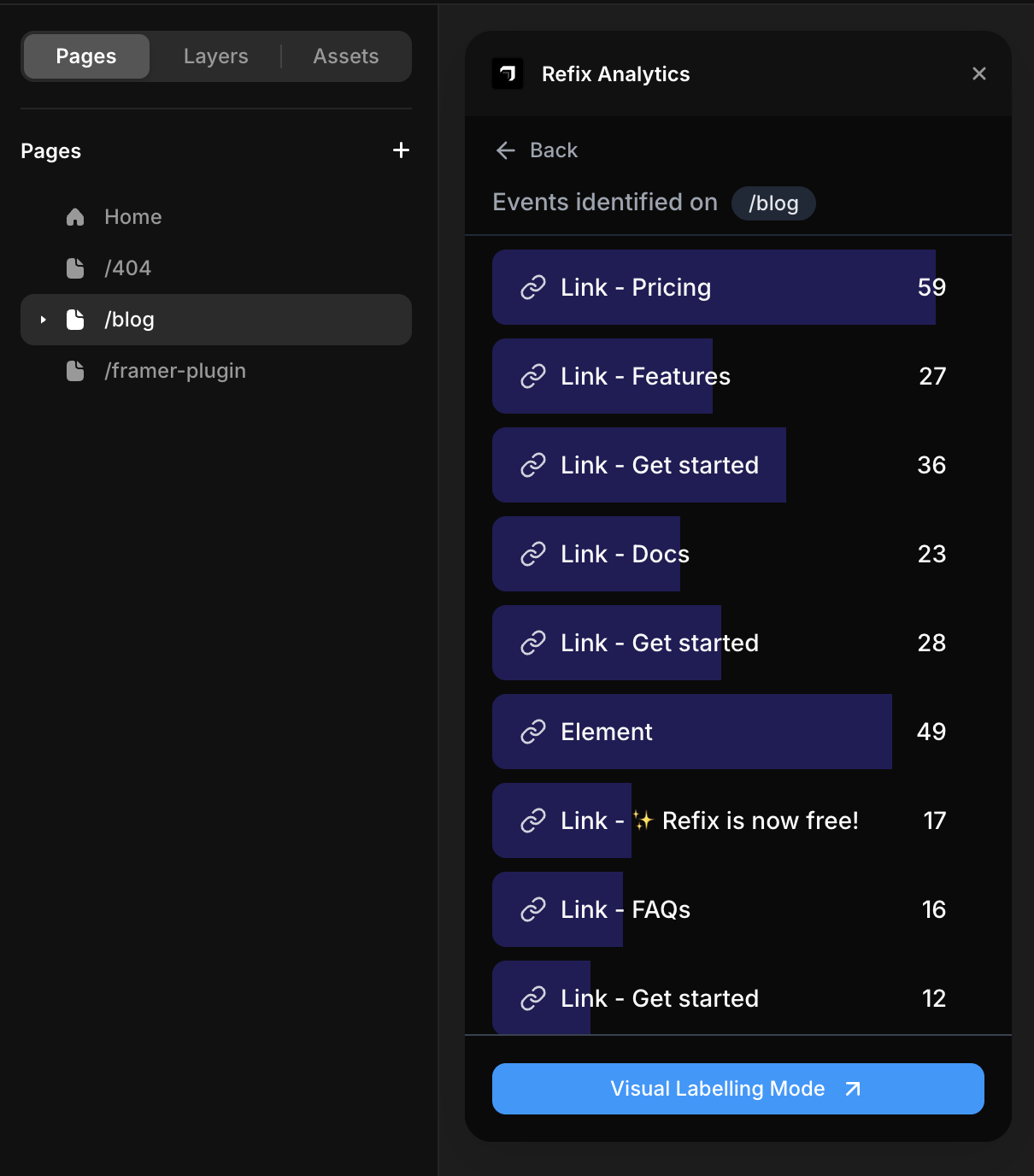 This allows viewing tracked interactions for a specific page directly within the editor.